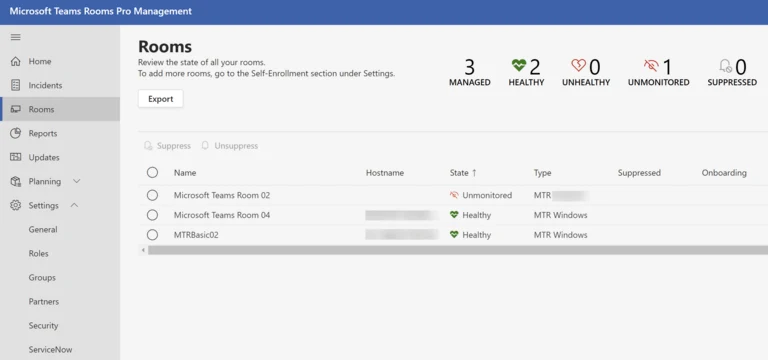
Microsoft’s release notes for Teams Rooms on Windows version 5.7.112.0, published 28 September 2026, contain one line that matters more to IT teams than any new in-room feature: Teams Rooms app updates “will be distributed exclusively through Pro Management Portal (PMP) and will no longer be available through the Microsoft Store.” (Microsoft Learn release notes)
It’s a short entry. It’s also the kind of change that doesn’t hurt anyone on day one and then shows up three months later as a room that won’t join a meeting.
Here’s what’s confirmed, what isn’t, and what I’d check before it becomes a support ticket.
What changed
The 5.7.112.0 release introduces two items:
- App update delivery via the Pro Management Portal. The Teams Rooms app on Windows is distributed only through PMP, not the Microsoft Store. Microsoft marks this item with its Pro licence icon.
- Local pan-tilt-zoom controls. Native PTZ control for compatible cameras from the in-room console, with enablement planned for October 2026 (camera controls docs).
The PTZ feature is welcome, but the update path is the operational change.
What the release notes don’t say
The entry doesn’t explain what happens to rooms that aren’t on a Teams Rooms Pro licence. I’m not going to guess, and you shouldn’t plan on a guess either.
What Microsoft’s existing update management documentation does say is that Pro rooms orchestrate updates through PMP update rings, while rooms on a Teams Rooms Basic or legacy Teams Rooms licence have their updates managed automatically during the device’s nightly maintenance window.
So the practical picture is:
- Pro rooms: the portal is now the update path. If PMP isn’t set up well, your update process isn’t either.
- Basic and legacy rooms: Microsoft’s docs describe automatic nightly updates. Confirm with Microsoft or your partner how the Store change affects these rooms before you assume nothing changes.
Microsoft has also published a separate guide on moving update management for Teams Android devices from Teams Admin Center to PMP, so the direction of travel across both platforms is clear: PMP is where Microsoft wants room fleets managed.
Why the update path matters
Microsoft supports Teams Rooms on an N and N-1 model: the current major release and the one before it (lifecycle support). If a room hits a defect on an older version, the fix is to update to the latest version.
That makes the update path part of your support posture, not just housekeeping. A room that silently stops updating is a room that eventually falls outside support, and you usually find out when an executive can’t start a meeting.
How PMP update rings work
If you haven’t spent much time in the update section of the portal, this is worth understanding. According to Microsoft’s documentation:
- There are three preconfigured rings: Staging (where new updates land first), General (the default, where most rooms live) and Executive (high-profile rooms where you want to minimize disruption).
- Each ring has a deferment period, a rollout duration, and a test period before the update moves to the next ring.
- You can create custom rings, up to nine in total, run in sequence.
- The full rollout across all rings can’t exceed 60 days.
Used properly, this is a solid change-control model. Used by default, with every room left in General and nothing in Staging, it’s just automatic updates with extra steps.
What this means for your rooms
Here’s the checklist I’d work through this month.
1. Audit your licences
Pull a list of every Teams Rooms device and its licence: Pro, Basic, or legacy. Mixed estates are common after a few years of growth and acquisitions, and this change makes the distinction operational, not just financial.
2. Confirm PMP enrolment and health
For every Pro room, check that it actually appears in the portal, reports healthy, and is assigned to a ring. Rooms that were licensed but never fully onboarded are the ones that slip through.
3. Make Staging mean something
Put at least one real room in the Staging ring, ideally one that matches your most common room standard (same compute, camera, mic and DSP). If you run an audio DSP or third-party control system in your rooms, that test room should have it too. An update that’s fine on a bare kit can still behave differently next to a Q-SYS or Tesira system with its own control logic.
4. Protect the rooms that matter
Use the Executive ring, or a custom ring, for boardrooms and town-hall spaces. Give them a longer deferment so they update after the rest of the fleet has proven the release.
5. Check your Store assumptions
Look at your imaging, provisioning, and device recovery runbooks. If any step assumes the Teams Rooms app comes from the Microsoft Store, it needs updating. This is also a good question to put to your integrator or managed service provider: how do they handle a reimaged room now?
6. Ask the licensing question early
If part of your estate is on Basic or legacy licences, get a clear answer from Microsoft or your licensing partner on how those rooms will receive app updates going forward. If the answer changes your budget, you want it before next year’s planning, not after.
The takeaway
This isn’t a crisis. It’s Microsoft consolidating room management in one place, which is where most well-run fleets already are. But if your rooms update “somehow, overnight” and nobody owns the portal, this is a good prompt to fix that while it’s still a quiet change rather than an outage.
If you’d like a second pair of eyes on your Teams Rooms fleet, licensing, or PMP setup, get in touch.
Source: Release notes for Microsoft Teams Rooms, version 5.7.112.0 (28 September 2026), plus the Microsoft Learn pages linked above.